A reusable regression library
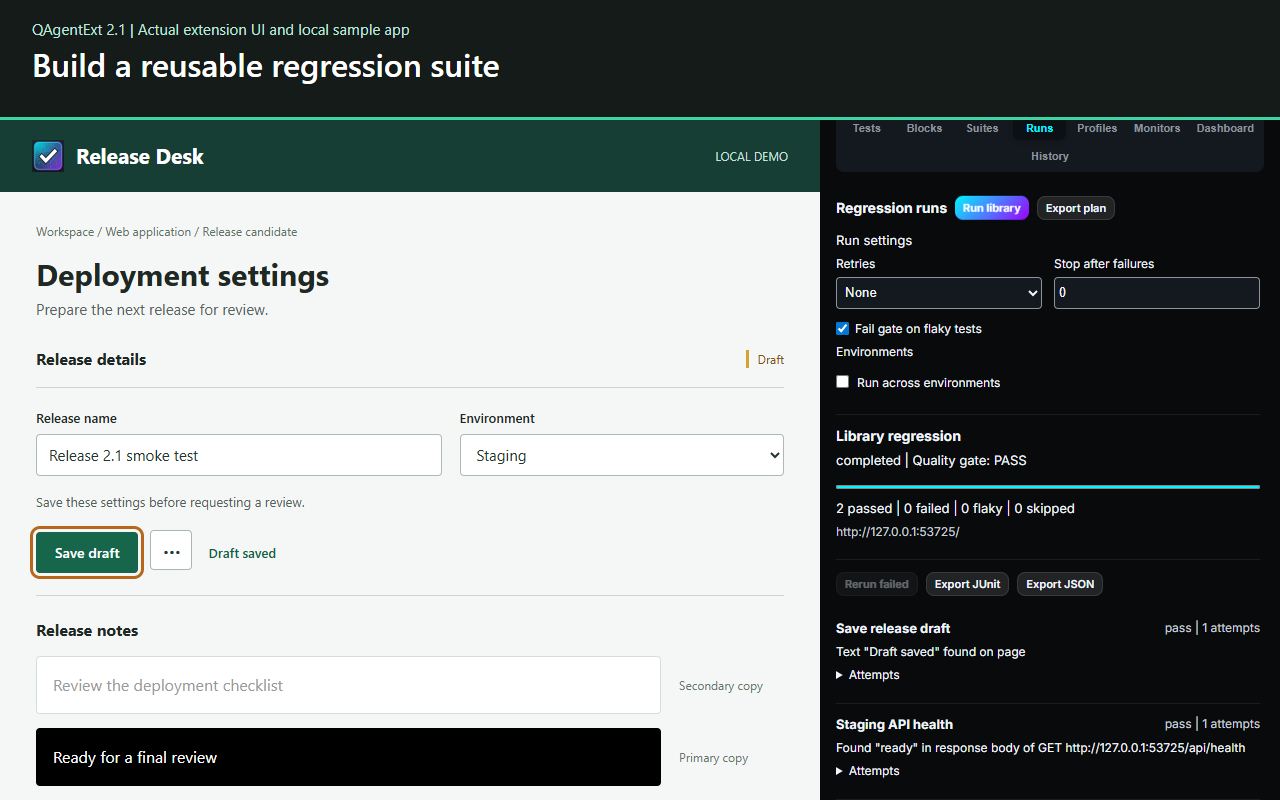
Save tests, organize suites and run checks sequentially. Use CSV data and environment profiles, inspect each outcome and rerun selected failures.
Browser testing · Chrome extension

Record a browser flow. Replay it as a test. Turn the result into your next automation script, all from Chrome's side panel.
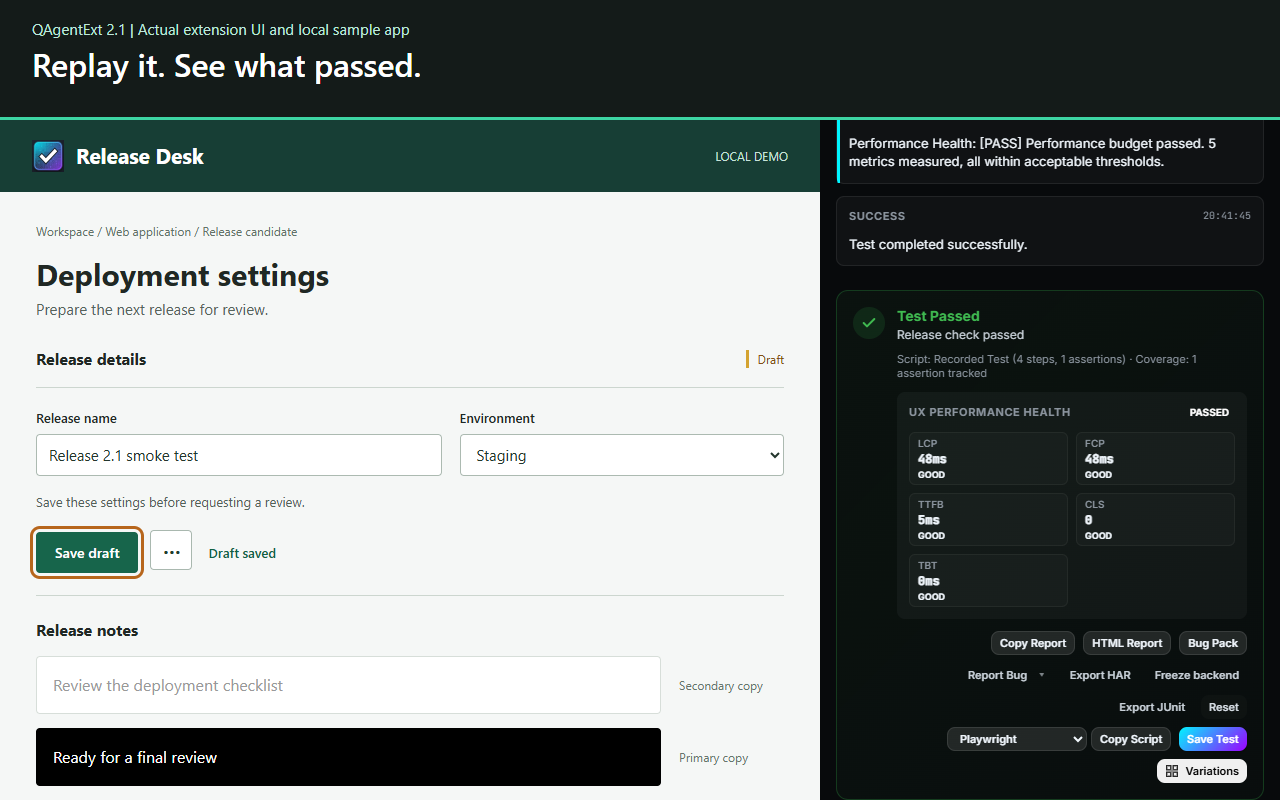
From a manual check to a repeatable test
Give your everyday browser checks a repeatable path, an expected result and evidence you can review when something changes.
Record a short flow, stop and review the steps. Add an assertion such as confirmation text appearing after a form is saved.
Run the steps on your target page, inspect the result and save useful checks to your library. A click alone does not prove success.
Copy Playwright or Cypress starter code. Review the generated script, install its dependencies and adapt it to your project.
75-second walkthrough
Record a form, replay it, export the code, investigate a failed assertion and run two saved checks. The copied Playwright script was also executed independently.
2.1 release preview. The store listing shows the version currently available to install.
Save tests, organize suites and run checks sequentially. Use CSV data and environment profiles, inspect each outcome and rerun selected failures.
Review the expected outcome, available screenshots, console messages and network diagnostics. Export reports and reproduction evidence for your team.
Hover over an element for its contrast ratio and text thresholds. Feedback updates as styles change; click to keep the detailed report.
Inspect roles, names, descriptions and states using the pointer or keyboard. Inspection modes have active states and Escape cleanup.
Combine supported plain-language commands and assertions with API requests, response checks, visual comparisons and accessibility diagnostics.
The separately installed companion CLI runs supported regression plans in headless Chromium and exports JSON or JUnit results for your pipeline.
Sequential tests share browser state. Generated scripts need review, and export support varies by action and framework. Automated accessibility and security checks provide diagnostic findings; manual review is still needed.
Screenshots from the 2.1 preview. Select an image to inspect the full view.
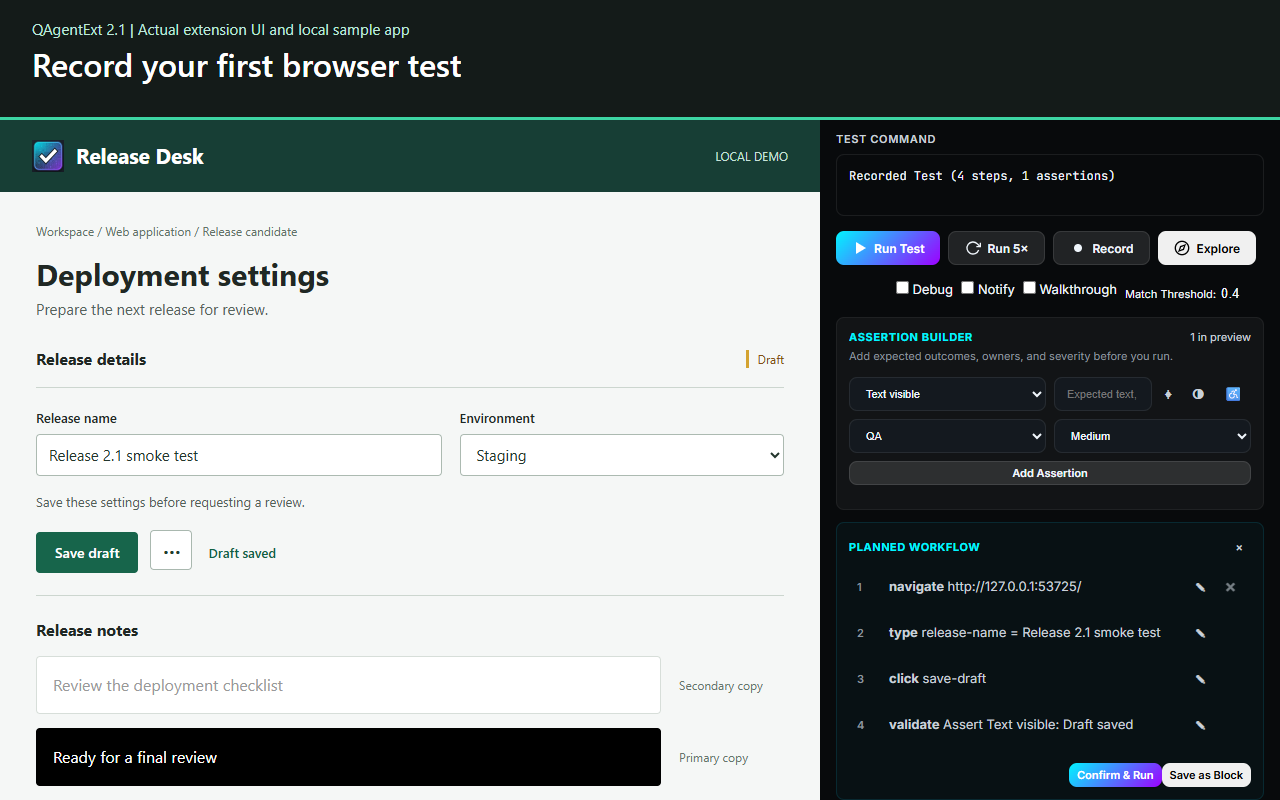
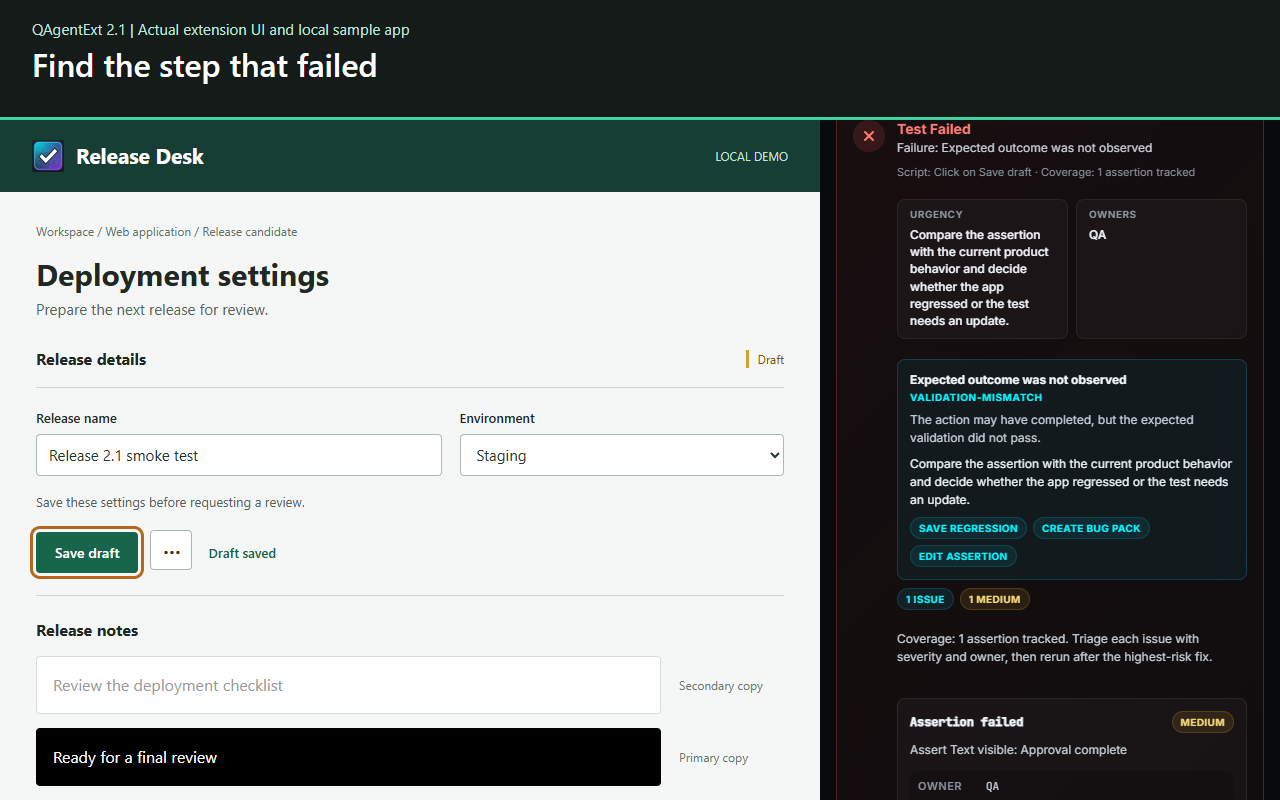
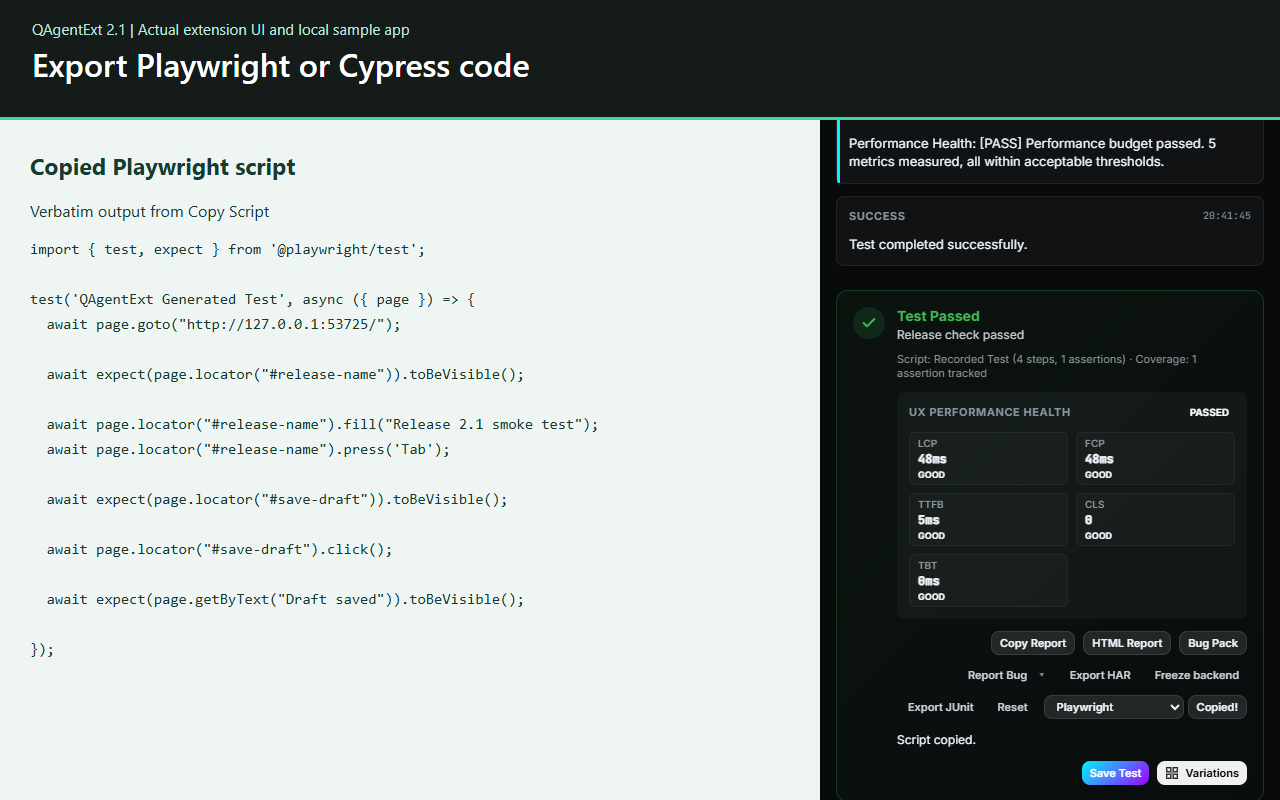
Core testing runs in Chrome without a QAgentExt account or an external AI service. Your application may still require its own sign-in and network connection.
Yes, after review and setup. Export coverage varies by action and framework. The 2.1 preview adds an execution guard for unsupported Playwright and Cypress steps; those steps need manual implementation. The demo's copied Playwright flow was run independently.
Core processing and saved tests are local. Page actions and API tests contact the applications you choose. Optional monitor webhooks send run summaries, and the extension panel requests Google Fonts. Reports can contain application data. See the privacy policy for details.
No. Semantic inspection helps you examine roles, accessible names and states. It does not reproduce a complete NVDA, JAWS or VoiceOver session or establish accessibility conformance.
Use Chrome on an application you can access and are authorized to test, including permitted internal environments. The application still needs its own connectivity and permissions. Chrome-protected pages and some embedded content cannot be inspected.
Open a safe test page and the QAgentExt side panel, record a short flow, add an expected result and replay it with dummy data. For help, email shubix.connect@gmail.com with the extension version and reproduction steps. Review screenshots and exported files for sensitive data before sharing.
Choose a flow you repeat often, define its expected outcome and keep it in your test library.